NEW YEARS’ SPECIAL!

Happy New Years! My name is Manuel and I run ManyProgramming™. Today we will be doing a very simple & fun quiz which you can download and then have fun with. However, the quiz that I will show you will not be the one you can download, simply so that you can’t cheat and you will have more fun. 

The quiz will be a multiple-choice quiz and will have three questions. The ones I will show you will be the very simplest questions and might not be relevant to New Years but the downloaded copy will be much more complicated and will require thinking; as you can see below.

def question1(Quest, Ans1, Ans2, Ans3, Ans):
    global score
    correct_answer=False
    for counter in range (3):
    x=input(Quest)
    if x.upper()==Ans.upper():
            print('Well Done, You got it Correct, +1 Point')
            score+=1
            correct_answer=True
            break
         else:
            print('Sorry, You got it Incorrect, Better luck Next Time! ')
    if not correct_answer:
                print('The Answer was',Ans)

print('ManyProgramming_Quizquam')
score=0
question1('What is my name?','\n A=Daniel','\n B=Manuel','\n C=Manual','B')
question1('What is this blog called?','\n A=ManySrogramming','\n B=DaniProgramming'','\n C=ManyProgramming','C')
question1('What is the date of New Years Day?','\n A=1st January','\n B=31st December','\n C=2nd January','A')
print('\nCongratulations, Your Total Score was', score)

Thank you for reading my blog and I hope you have a Happy New Years. Also, if you would like to see my book reviews blog than Click Here! If you want to download the quiz, then Click of the Link Below!

CHRISTMAS SPECIAL!!

Merry Christmas Picture

Merry Christmas; my name is Manuel and run ManyProgramming! Today I will be doing a simple Christmas quiz that’s multiple-choice and obviously, I will show you how I did it. If you want me to send you the quiz then send me an email: programmingmany@gmail.com!

Firstly, we will very simply name a Turtle Graphics program. All you have to do to name it is type ‘turtle.title(‘Whatever_Your_Name_Is’); however, if you gave ‘import turtle’ a nickname then you need to use it before the ‘.title’. Lastly, for that matter, you can select your own name for the turtle graphics and it can include ANYTHING.

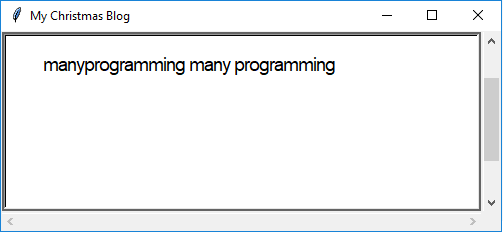
Secondly we will be using Turtle Graphics to design a Christmas Card which has writing on it. Because Turtle Graphics is a very simple graphical program so you would have to copy and paste if you want to have different parts e.g. defining different letters. What you will see below will only be two letters defined and all you have to do to define more letters is copy that and only change the letters (manually). For the full version will all letters download the file at the bottom of the blog (Above the ‘Merry Christmas’)

import turtle as t

FONT = ("Arial", 14)

Ans = str()

def a():
    global Ans
    Ans +='a'
    t.write(Ans[-1], move=True, font=FONT)

def b():
    global Ans
    Ans +='b'
    t.write(Ans[-1], move=True, font=FONT)

def A():
    global Ans
    Ans +='A'
    t.write(Ans[-1], move=True, font=FONT)

def B():
    global Ans
    Ans +='B'
    t.write(Ans[-1], move=True, font=FONT)

def space():
    global Ans
    Ans +=' '
    t.write(Ans[-1], move=True, font=FONT)

def end():
    t.bye()

def delete():
    global Ans
    if len(Ans) > 0:
        Ans = Ans[:-1]
        t.clear()
        t.goto(-200, 50)
        t.write(Ans, move=True, font=FONT)


def getKey():
    t.onkey(a,'a')
    t.onkey(b,'b')
    t.onkey(A,'A')
    t.onkey(B,'B')
    t.onkey(space, 'space')
    t.onkey(end,'Return')
    t.onkey(delete,'BackSpace')
    t.onkey(delete,'Delete')

#The Main Program
t.title('My Christmas Blog')
t.setup(width=500, height=200)   # window size is whatever you want
t.hideturtle()   # hide the arrow
t.tracer(False)  # switch off the drawing the lines
t.goto(-200, 50)  # this is your starting position
t.speed(0)  # drawing very quick
getKey()  # Get the inputs
t.listen()  
t.mainloop()

Something

Lastly, the result of the input (The letters that you put in) is stored in the variable ‘Ans’. You can easily change the variable though.

Thank you for co-operating with this very hard blog and I hope you have a Very Merry Christmas! Also, if you would like to see my book reviews blog then Click Here!

Merry Christmas Picture


HOW TO USE TURTLE GRAPHICS IN PYTHON!

Hello, my name is Manuel and I run ManyProgramming™. Today I will be showing you how to use Turtle Graphics in Python. It is a pretty simple feature until you start getting to letters, and implementing it into a program. This blog will not be very long and will only introduce you to the basic and simplest features of Turtle Graphics like filling a shape, making a shape and lot’s of other things! We will also right words on turtle graphics. It’s pretty simple!

Firstly, I will show you how to make a simple shape, like a square. The idea is to use the curser (in Python) to draw the shape. You can also fill the shape and draw more complex shapes like circles and such.

>>> import turtle as t
>>> t.forward(50)
>>> t.left(90)
>>> t.forward(50)
>>> t.left(90)
>>> t.forward(50)
>>> t.left(90)
>>> t.forward(50)
>>> t.left(90)

Now, you may think I’m a bit strange but if you were to type this into Python, then Turtle Graphics will automatically open and will start drawing by every line of code you say. When I write ‘import turtle as t’ at the beginning, the ‘t’ is only the nickname and can be anything as long as it doesn’t have a space and, in my opinion, is short because if it’s long, then what’s the point of giving it a nickname. However, if you do give it a nickname then you have to use the nickname before you the commands; e.g. my nickname is t so I do t.forward. If me nickname was lok, then I would have to do lok.forward because it follows what my nickname is. If you don’t want to have a nickname, then you can just write ‘import turtle’ and then you will have to write turtle.forward instead of an optional nickname!

Now, you can go in any direction. The options are ‘forward’, ‘right’, ‘left’ and ‘backward’ for moving the curser and manually drawing the shapes. Now you have a huge amount of different codes in Turtle Graphics and if you’de like to see all of them then Click Here!

Next up, we will be making circles and other shapes that aren’t as easy to make with a cursor. Note: If you would like to make an equilatorial triangle, all you have to do is go left(60) / right(60) and the length has to be the same! We will also be filling up the shape.

>>> import turtle as t
>>> t.color('red')
>>> t.begin_fill()
>>> t.circle(100)
>>> t.end_fill()

Now we will get a circle with the radius of 100 and it will be filled with red. If anything is wrong or if there is anything you don’t understand then email: programmingmany@gmail.com. You can change the size of the circle by changing the number after ‘t.circle’. I used red because I know it works but many colors work. If you are unsure whether a color works or not than contact me and I will figure it out for you. Note: Wherever you curser is facing on turtle graphics, the shape will always be on the left e.g. your curser if facing your right, then the shape will be above the curser & vice-versa.

If you want to clear your Turtle Graphics then do ‘.clear()’. Obviously you need to put the nickname you gave it or turtle before the dot as I explained above but other than that if will clear the whole turtle graphics.

Lastly, we will be writing on Turtle Graphics. This isn’t the most handy but might come in handy if you are trying to make a poster for example, or a sign, or anything that uses writing. It’s again, pretty simple. 

>>> import turtle as t
>>> t.color('orange')
>>> font=("Verdana", 15, 'normal', 'bold', 'italic', 'underline')
>>> t.write('ManyProgramming Blog')

Now there will be a piece of writing on the Turtle Graphics saying ManyProgramming Blog. It will be in orange because I told Python BEFORE to make it orange and it will be bolg, italic and underlined. You can also change the font. The default font is Arial but I changed it to Verdana. Yet again, if you have any concerns about fonts or anything else just contact me.

If you were to insert this into a piece of quiz, then you could have pictures on your python quiz. However, I don’t think you are able to use Turtle Graphics in most Python Frameworks when making a website so we might have to go over another one.

Thank you for reading my blog and I really hope it made your day. If you have any worries, for the last time, Contact me at: programmingmany@gmail.com. Also, get ready for my Christmas blog because it’s coming out on the 24th December at 7:00pm.If you would like to see my book reviews blog than Click Here!

HOW TO MAKE A MULTIPLE-CHOICE PROGRAM

Hello, my name is Manuel and I run ManyProgramming™. Today we will be making a functional Multiple-Choice program. I will be making a quiz with five Multiple-Choice questions. At the end it will show me my score.

Today I will be showing you pretty complex and diverse multiple-choice quiz that has a lot of different features. I will try to split the quiz up into small diverse parts which we can then put completely together at the end. I will also put up a copy of the completed quiz! WARNING! WHEN I USE THE ‘#’ THAT MEANS THAT PYTHON ONLY TAKES IT IN AS TEXT AND DOESN’T PROCESS IT!

Firstly, we’ll start off with the beginning part. 

print ('WELCOME TO THE MULTIPLE CHOICE TEST\n')

name = input('WHAT IS YOUR NAME? ')

print ('\nHI THERE ' + name + '! LET''S PLAY A GAME!\n')

print ('\n-----------------------------------------------------------\n')

score = 0

First it will say ‘WELCOME TO THE MULTIPLE CHOICE TEST’, then, it will ask you for your name. Then after you put your name in it will say ‘HI THERE What_ever_your_name_is! LET’S PLAY A GAME! It will then have a line that splits the welcoming & the actual questions.

Secondly, we will do the questions.

print ('QUESTION 1: WHAT IS THE LARGEST OCEAN IN THE WORLD?\n')
print ('A. The Indian Ocean')
print ('B. The Pacific Ocean')
print ('C. The Atlantic Ocean')
print ('')

Q1answer = "B"
Q1response= input('Your answer : ')

if (Q1response != Q1answer):
print ('Sorry, that is incorrect! The answer was B')
else:
print ('Well done! ' + Q1response + ' is correct!')
score = score + 1
print ('Your current score is ' + str(score) + ' out of 5')
print ('\n-----------------------------------------------------------\n')

Now this is the question. The question will have three options as answers. You have to type the letter that you think is the correct answer; if you get the answer right, then it will say ‘Well done! Whatever_letter_you_said_correctly is correct!’but, if you get it wrong, then it will say that it is incorrect and will tell you the right answer. If you want to have multiple questions, then you just copy everything I wrote above multiple times and just edit the questions and answers. At the end the score will be +1 every time you get the answer correct! And, at the very end, it will tell you your current score and then put a line, separating the different questions!

Lastly, the part at the end is probably the easiest to understand. What you see below tells Python that it needs to print the score you got, in my case out of five because I have 5 questions, but you can decide out of how much your score should be. At the bottom, it has a line which says that the quiz is ended (Not to Python because it doesn’t take that in but to you).

print ('Your total score is ' + str(score) + ' out of 5')
print ('\n-----------------------------------------------------------\n')

# Thank you for taking part in my Quiz!! 

Now if you put all this together, then you will have a very long program and as a programmer, you want to save as much space as you can so I will now show you how to shorten everything. It will be the same, basic principal as the program we did last blog; as you’ll see below.

def question1(Quest, Ans1, Ans2, Ans3, Ans):
    global score
    correct_answer=False
    for counter in range (3):
        x=input(Quest)
        if x.upper()==Ans.upper():
            print('Well Done, You got it Correct, +1 Point')
            score+=1
            correct_answer=True
            break
        else:
            print('Sorry, You got it Incorrect, Better luck Next Time! ')
    if not correct_answer:
        print('The Answer was',Ans)

print('ManyProgramming_Quizquam','\nPlease type in the letter of your selected choice!')
score=0
question1('What is the largest Animal on Earth?','\nA= Blue Whale','\nB= Elephant','\nC= Humpback Whale,' A')
question1('What is the fastest car on Earth?','\nA= Muscle Cars','\nB= Ferrari','\nC= Koenigsegg',' C')
question1('What is the most Deadly Spider on Earth?','\nA= Tarantula','\nB= Black Widow Spider','\nC= Daddy Long Legs',' B')
print('\n-----------------------------------------------------------------)
print('\nCongratulations, Your Total Score was', score)

This way you can add as many questions as you would like by simply adding a line that tells the information of the question, as I have done above. The idea is very simple; it uses a function which determines whether the answer is right of wrong. I also have written all the different objects and used ‘\n’ to tell Python that the three options for the multiple-choice test will be on separate lines. It is also the same principal as the first program I made; if you didn’t read it then Click Here to Open the Blog!!

Thank you for reading my blog. I hope you have a wonderful day. If you want to have the quiz, email programmingmany@gmail.com and I will send you the quiz and how to load it. Also, get ready for my Christmas blog. I will post at 7:00pm on Monday the 24th of December! If you would like to see my book reviews blog then Click Here!

MY FIRST FUNCTIONAL PROGRAM!

Hello, my name is Manuel and I run ManyProgramming™. Today we will be making our first functional program. I will be making a quiz with three simple questions. At the end it will show me my score.

Firstly I need to open my Command Prompt and my Text Editor. I am using a very standard text editor for Windows but any will do. How to get it running: Save the Text in a Text Editor in a directory under your C drive. To start the program you need to type into Python, “exec(open(‘C:\\Wherever_you_have_saved_it\\ ManyProgramming_Quizquam.py’).read())”.When you save the file, you need to write .py next to the name e.g. The name is: ManyProgramming so I save it as ManyProgramming.py. I used ManyProgramming_Quizquam.py because that is what I called my file. 

print(‘ManyProgramming_Quizquam’)
score=0
for counter in range (3):
    x=input(‘What is the Largest Animal on Earth? ‘)
    if x.upper()==’BLUE WHALE’:
        print(‘Well Done, You got it Correct, +1 Point’)
        score+=1
        break
    else:
        print(‘Sorry, You got it Incorrect, Better luck Next Time! ‘)
if score > 0:
    print(‘Your Score is’, score)
else:
    print(‘The Answer was Blue Whale’)

The Idea of the Program: So, at the Beginning, it will say ManyProgramming_Quizquam. Then it will ask the question ‘What is the largest Animal on Earth?’ You will have to answer on the same line; if you get it correct it will show you your score (On this version there is only one question), however, it you get it wrong you will have two more chances, so, three chances all together.

The ‘x.upper()’ part of the text means that whatever pattern of capitals and lower cases there are, the answer will always be converted to upper and the spelling will be correct.

If, after the three chances, you get it wrong , then it will say ‘Sorry, You got it Incorrect, Better luck Next Time’. The idea of the program is to make a quiz for whoever asks it to. This is one of the simplest programs you can get.

However, if you want to have more questions you need to copy the entire program as many times as the number of questions you want to ask, editing the text in each part as you go.

The next text uses a function to re-use the program again, and again: 

def anything_you_want(Quest, Anything_you_want):
    global score
    correct_answer=False
    for counter in range (3):
        x=input(Quest)
        if x.upper()==Ans.upper():
            print(‘Well Done, You got it Correct, +1 Point’)
            score+=1
            correct_answer=True
            break
        else:
            print(‘Sorry, You got it Incorrect, Better luck Next Time! ‘)
    if not correct_answer:
        print(‘The Answer was’,Ans)

print(‘ManyProgramming_Quizquam’)
score=0
question1(‘What is the largest Animal on Earth?’, ‘Blue Whale’)
question1(‘What is the fastest car on Earth?’, ‘Koenigsegg’)
question1(‘What is the most Deadly Spider on Earth?’, ‘Black Widow Spider’)
print(‘\nCongratulations, Your Total Score was’, score)

Now this is one of our more complex and diverse programs on the beginning stages of our blog. At the beginning it defines a function that can be re-used with different questions. The ‘for counter in range (3)’, like the other example, is telling Python to give you two more chances, so three chances in total. The next part tells Python that if you get the answer correct than you can move on to the next question but if you got it wrong, then you have to answer it again and a message telling you that you got it wrong will appear. The last part is telling you that you need to 

I have written three questions at the bottom which get asked on my program but you can make as many questions as you like and can call them whatever you want as long as, for now, it is a one word answer.

I really hope you have enjoyed this blog. Every view helps me a lot and if you have any questions contact: programmingmany@gmail.com. If you would like to see my book reviews blog, then Click Here!

INTRODUCTION TO LOOPS!

Hello, my name is Manuel and I run ManyProgramming™. Today we will be Introducing you to Loops. I hope you enjoy this blog.

Loops: Computers are great at doing boring tasks without complaining. The Programmers aren’t, but they are good at getting computers to do repetitive work for them; by using Loops. A loop runs the same block of code over and over again. There are several different types of loops.

For Loops: When you know how many times you want to run a block of code, you can use a ‘for loop’. In the example below, I am telling Python to print “Manuel’s Room – Keep Out!!!” Python knows how many times it should print that statement because I put the range (1, 8). At the beginning of the piece of code it says ‘for counter in range (1, 8)’. I have told you what the range is so now I will tell you what the ‘for counter’ means. The ‘for counter’ is the loop variable and means it is the counter of the loops. You either run it any number of times or for each element in a list or a dictionary.

>>> for counter in range (1, 8):
...    print('Manuel\'s Room - Keep Out!!!')
...
Manuel's Room - Keep Out!!!

Range: In Python code, the word “range” followed by two numbers within brackets stands for “all the numbers from the first number to one less than the second number”. E.g. ‘range (1, 4)’ means the numbers 1, 2 & 3 – but not the fourth number. In my “Keep Out” program, range (1, 11) is the numbers 1, 2, 3, 4, 5, 6, 7, 8, 9, 10 but not 11.

Escape Character (\): The Backslash in ‘Manuel \ ‘s room’ tells Python to ignore the apostrophe so that it doesn’t treat it as the quotation mark that closes the whole string. A backslash used like this  is called an Escape Character. It tell Python not to count the next character when working out if the line makes sense or contains errors.

While Loops: What happens if you don’t know how many times you want to repeat the code. Do you need a crystal ball or some other way of seeing into the future? No, it’s okay! You can use a while loop!

Loop Condition: A While Loop doesn’t have a loop variable that’s set to a range of values. Instead it has a loop Condition. This is a Boolean expression that can be either True or False. It’s a bit like a bouncer at a disco asking you if you’ve got a ticket. If you have one (True), head straight for the dance floor; if you don’t (False), the bouncer won’t let you in. In programming, if the loop condition isn’t True, you won’t get into the loop.

Balancing Act: In this example, I have written a program to keep track of how many of his troupe of acrobatic hippopotamuses have balanced on top of each other to make a tower. Read through the code and see if you can figure out how it works.

>>> hippos = 0
>>> answer = 'y'
>>> while answer == 'y'
        hippos = hippos + 1
        print(str(hippos) + ' balancing hippos!')
        answer = input('Add another hippo? (y/n)')

Loops inside Loops: Can the body of a loop have another loop within it? Yes! This is called a Nested Loop. It’s like Russian dolls, where each doll fits inside a larger doll. In a Nested Loop, an inner loop runs inside an outer loop. One Loop inside another: In this example I have changed my “Keep Out” program to a “Three Cheers” program that prints “Hip, Hip Hooray!” three times. Because each cheer includes the word “Hip” twice, I am using a Nested Loop to print it.

>>> for hooray_counter in range(1, 4):
        for hip_counter in range(1, 3):
            print('Hip')
        print('Hooray!')

Super Skills: We learnt about lists last Sunday and so now I will put loops into lists. I call it Super Skills because it is incredible what it can do. As you can see in the examples below I have written ‘x**2’ which is x to the power of 2. This means that if you switch the two with any other number, the power will be to whatever number you switched the two with.

>>> [x**2 for x in range(5)]
[0, 1, 4, 9, 16]

The Next example I will be showing is to repeat a certain word or number.  You always need to use square brackets [] and need to do this [‘anything_you_want’ for i in range(whatever_number_you_want)]. Here is the example I used:

>>> ["abc" for i in range(5)]
['abc', 'abc', 'abc', 'abc', 'abc']

Thank you very much for reading my blog and I hope you enjoyed it; I hope it made your day. If you would like to see my Book Reviews blog then Click Here!

INTRODUCTION TO LISTS AND DICTIONARIES!

Hello, my name is Manuel and I run ManyProgramming™. Today I will be introducing lists and Dictionaries to you. Make sure to stay tuned every Friday/Saturday so that you can enjoy the full tutorial.

Lists: Are collections of single values. Each element can be anything; integers, strings, floats or other objects; they need to be separated with a comma. I put some examples below

>>> this_is_a_list=[1,3,'Manuel',6,"Daniel"]
>>> this_is_a_list
[1, 3, 'Manuel', 6, 'Daniel']
>>> this_is_a_list[0]
1
>>> this_is_a_list[2]
'Manuel'
>>> this_is_a_list[4]
'Daniel'

To getout one of the elements, the square brackets [] with the number of the element inside. The counting starts with 0 and ends with the total number minus one. The total number of the elements can be obtained with the function ‘len(listname)’. 

Lists can even be cut or sliced. You need to use the square brackets [].The slicing is separated by the double colons; as you can see in the example below. 

>>> this_is_a_list
[1, 3, 'Manuel', 6, 'Daniel']
>>> this_is_a_list[0:2]
[1, 3]
>>> newlist=this_is_a_list[1:3]
>>> newlist
[3, 'Manuel']
>>> li=list(range(10))
>>> li
[0, 1, 2, 3, 4, 5, 6, 7, 8, 9]
>>> li[::2]
[0, 2, 4, 6, 8]
>>> li[::3]
[0, 3, 6, 9]
>>> li[::-1]
[9, 8, 7, 6, 5, 4, 3, 2, 1, 0]
>>> li*2
[0, 1, 2, 3, 4, 5, 6, 7, 8, 9, 0, 1, 2, 3, 4, 5, 6, 7, 8, 9]
>>> li+li
[0, 1, 2, 3, 4, 5, 6, 7, 8, 9, 0, 1, 2, 3, 4, 5, 6, 7, 8, 9]

As you can tell, I have made three lists (‘this_is_a_list’, ‘this_is_another_list’ & ‘li’) and have done calculations with the lists. You can call the lists anything other than the reserve words. If you want to know all of them send me an email (programmingmany@gmail.com) and I will send you how to get the reserve words for your version of Python. Lists can be multiplied (*) and added (+) but not divided (/) or taken away (-). You are also able to see different parts of the list as I have just showen you. You are able to have numbers, letters, or words.


Dictionaries: Are lists with an explanation or a value. In Python it is called a key and a value. Just like a physical dictionary. The key (the word that is being explained) has to be unique. It cannot be the same or it will be overwritten as you will see at the bottom of the examples. However, the value (the explanation or meaning of the key) can be the same.

>>> d={"Auto":"Car","Haus":"House, building","A":3}
>>> d
{'Auto': 'Car', 'Haus': 'House, building', 'A': 3}
>>> d["Auto"]
'Car'
>>> d["Auto"]
'Car'
>>> d["auto"]              # This is a misspelling
Traceback (most recent call last):
File "<stdin>", line 1, in <module>
KeyError: 'auto'
>>> d.keys()
dict_keys(['Auto', 'Haus', 'A'])
>>> d.values()
dict_values(['Car', 'House, building', 3])
>>> dd={'a':2,'b':4,'a':6}        # Duplicated keys 'a'
>>> dd
{'a': 6, 'b': 4}

You can also merge dictionaries. This is how; ‘Name_of_the_Dictionary.update (Name_of_the_dictionary_you_want_to_merge)’ If you do this in Python all the keys & values from the dictionary you put in brackets will be put into the the dictionary you put before the ‘.update’; making only one dictionary with all the entries (an entry consists of keys & values.

Thank You very much for reading my blog. Every view helps me a lot. This blog was done by Manuel & Daniel Kolb. I hope you continue reading my blogs every Friday! If you would like to see my book reviews blog than Click Here!

INTRODUCTION TO FUNCTIONS AND ‘IF’ CLAUSES!

Hello, my name is Manuel and I run ManyProgramming™. Today I will be introducing ‘functions’ and ‘if’ clauses to you. I hope you enjoy this blog! 

What are Functions? Functions are handy collections of code that can be re-used by calling the name of it! To define a variable you need to use ‘def’.

>>> def question_add(x=3,y=8):

             s = "What is " + str(x) + " + " + str(y) + "? "

             ans = input(s)

             if int(ans) == x + y:

                            print("correct!")

             else:

                            print("Wrong wrong wrong!")
How can you use this function?
>>> question_add()
What is 3 + 8? 11
correct!

>>> question_add(5,10)
What is 5 + 10? 14
Wrong wrong wrong!
If you run this function than you will see that it asks you to add 2 numbers. If the brackets are empty it will use ‘3’ & ‘8’ because I have pre-defined it. However, if you put two numbers inside of the brackets after ‘question_add, than the question will ask whatever 2 numbers you used.If you get the answer correct than it will say “correct!” However if you get it wrong, than it will say “Wrong wrong wrong!”. These are the very basics of my first project: Programming a learning website! We will need to use these in the website which we make.
Functions can return a value:
>>> def anything_you_want(x):

    return x * 2 + 5


>>> anything_you_want(3)

11

>>> y = anything_you_want(4)

>>> y

13
Now, what I have learnt about indents is that they always have to be the same size e.g. if you use 2 spaces than you have to continue using 2 spaces. You can change it if you are talking about a different function but when using the same function than you need to use the same number of indents every time. Now consider this example:
>>> def test()
   print('lolol')
print('lol')

>>> test()
lolol
Ok, so if you are wondering why it only printed ‘lolol’ instead of ‘lolollol’ is because after ‘def test()’ the print line had 3 indents and then the bottom line had 0 indents. Python thinks that the definition is finished if the indent number is not the same! WARNING: You will get an error if you do this!
Python has a number of built-in functions that you can use in your code. These are helpful tools that let you do lots of tasks, from imputting information and showing messages on the screen to converting one type of data into another. You’ve already used some of Pythons built-in functions such as “print ()” and “input ()”. Have a look at these examples. Why not try them out in a shell.
Now, let’s talk about ‘if’ clauses. They can help you to make decisions! For Example:
>>> quest = input('Do you speak German? y/n ')
Do you speak German? y/n N
>>> def question():
...     quest = input('Do you speak German? y/n ')
...     if quest.upper() == 'Y':
...         print('Guten Tag')
...     elif quest.upper() == 'N':
...         print('Buon Giorno')
...     else:
...         print('Please type Y/N')
...
>>> question()
Do you speak German? y/n n
Buon Giorno
>>> question()
Do you speak German? y/n N
Buon Giorno
>>> question()
Do you speak German? y/n a
Please type Y/N

Now as you can tell I have just defined what ‘question’ is. I said that if they answer ‘y/Y’ which stands for yes it will print Guten Tag. Otherwise if they answer ANYTHING else (gggdsajgyh, yy, nodh, nopped), it can literally be anything, than it will answer ‘LOSER!!!!!!!!!!!!!!!!!!!!!!’.

Now with the function name. You can have anything you want as the function name as long as there are no spaces. You can use an underscore _ to fill in for spaces. Alternatively use no spaces at all e.g. Anything you want (Not-Allowed) e.g. Anything_you_want (Allowed) Now one word is also allowed e.g. anythingyouwant. You are also not allowed to have a number at the beginning on the function name e.g. 1xx. If the number is at the end or in the middle then that it is alright!
Thank you for reading my blog and I hope you stay tuned every Friday for new Python blogs. I hope you enjoyed reading my blog and I hope it helps you. If you enjoy reading and would like to see my reading blog then Click Here!

INTRODUCTION TO “int”, “float” & “str” IN PYTHON!

Good Afternoon. My name is Manuel and I run ManyProgramming™. Today I have got a start-up on what “int”, “float” and “str” is on Python. I hope you enjoy and continue following me!

“int” standing for Integer is a whole number! E.g. 1, 2, 3, 4,000…                                We  You usually use them as variables e.g. x=1, y=100, z=1000…

If, on Python, you do this:

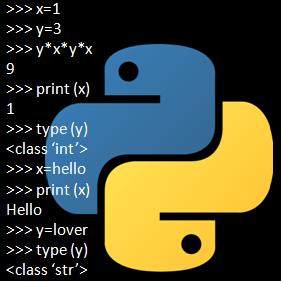
>>> x=1

>>> type (x)

<class ‘int’>

>>> print (x)

1

You can even use Python as a pocket calculator very easily. For Example,

>>> 3*x-1

2

Next, I will define more variables.

>>> a=2

>>> b=3

>>> c=4

Now I have defined 4 Variables as Integers. “x=1”, “a=2”, “b=3” & “c=4”.

>>> a*b*c*x-a-b-c-x

18

 This can be used very flexibly and some people even use it as a calculator. This is a bit random but you are able just to do this:

>>> 195*195

WARNING! When using multiply than you have to use * instead of x. Same with division. You need to use / instead of the normal one you use on normal calculators!

This, with the colours work on IDLE versions of Python, when the background is white. The “x=1” doesn’t have to be a 1 but I did it because I have just written on integers!

“float” standing for Floating Number is a decimal number! E.g. 1.5, 1.6…

Similar to the string and the integers the floating number is often used in a variable e.g. x=1.5, y=1.6…

If in Python you do this:

>>> z=1.5

>>> type (z)

<class ‘float’>

“str” standing for String is a sequence of characters! E.g. Hello, World, Mum… 

We usually use them when defining worded meanings

E.g. x=”Hello World”, y=”my mum”…

>>> y=”Hello World”

>>> type (y)

<class ‘str’>

You can also put numbers as a string! e.g. “1000” is a string but 1000 without the inverted commas is an Integer. Now follow along as I teach you about how to change a string to an Integers. 

>>> g=”12345″

This is a String.

>>> h=12345

This is an Integer. I will now overwrite ‘h’ to make it a string.

>>> h=”67890″

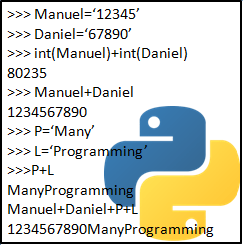
Now you are able to add strings. The two strings will extend instead of adding numerically! e.g. 123+456 (if it is a string) will be 123456. 123+456 (if it is an Integer) will be 579!

>>> g+h

1234567890

>>> int (g) + int (h)

80235

Yes, I know, you might look a little surprised but the concept is very simple. I have defined ‘g’ & ‘h’ as strings but here I changed them, only for this time, to an integer.

The ‘z’ and the ‘1.5’ can be replaced. The ‘z’ can be replaced by any letter but be careful because if the letter is the same as one you have used before. You could do it on purpose or you might accidentally do it. The ‘1.5’ can be replaced by using any other number; if you want a floating number than you should take a decimal number!

To change the class please follow what I will do next!

>>> x=”1″                         This is an Integer (int)

>>> x=”Hello World”         This is a String (str)

>>> x=”1.5″                       This is a Floating Number (float)

Just change the variable to the chosen class by using the top three to adjust it!

You can even add strings!

>>> a=”abc”
>>> b=”xyz”
>>> a+b
‘abcxyz’

Thank you very much for listening to my first proper blog on Python. Hope you tune in for next weeks Friday! If you would like to see my Book Reviews blog than Click Here!

INTRODUCTION TO MANY-PROGRAMMING & PYTHON!

Good Morning. My name is Manuel and I run ManyProgramming™. This is my first blog. I have designed my Blogs to be different projects on Python. First I want to start to create a website to help learning different subjects. Later I plan to build robots, and other things that are fun. I will describe it in a series of blogs posted every Friday. This will break my big projects into small diverse parts. Please ask me any questions if my descriptions are not clear to youI am learning too while writing about it!

Firstly, if you have Python than you can skip this paragraph but if you don’t have Python or you are not sure than you can download it for free at https://www.python.org/downloads/. There are three main operating systems which you can get Python on: Linux, Windows and the Apple systems. If you have Linux, then you probably have Python but check if you have it. You should go to start menu to check if you have Python. If you have Windows than you should ask Cortana (Windows’ AI help assistant). If you have an Apple laptop that you can ask Siri (Apple’s AI help assistant). If after your check you do not have it, I know I repeated it, then go to https://www.python.org/downloads/. It doesn’t matter much which version of Python you install; I am using Python version 3.6 currently but 2.7 still works. 

 You can either type Python onto a command prompt or you can open IDLE. At the moment I am using IDLE because I find it much simpler to set up and command prompt is much older. Additionally you would need to have a text editor. It can be very simple if you want. I am using notepad in Windows at the moment but I am planning to try others in the future.

What is Python: Python is one of the most popular programming languages because it very simple to learn but on the other hand very powerful and flexible. What I like is that I can type in the commands and just test if it works.

Next week I will be writing about Integers, Strings and Floating Numbers. The following week I will be writing about Functions. The week after that I will be writing about Lists and Dictionaries. And then I will put everything together into a little program. After I have the program together I will try to put it into a webpage.

ManyProgramming aims to help this generation improve their life quality instead of just spending money and time on fortnite for their whole lives. We aim to bring people into the arts of engineering because as AI comes, so should our programming skills. Soon robots could even be doctors!

I got all my information from Python Website. It is free to use and if you need any further information contact programmingmany@gmail.com! Thank you for joining me on my first blog and I hope you enjoy your day. If you want to see my book reviews blog than Click Here!